

Install the VisionVix Store.
VisionVix Store installs from your browser in a few taps, with no app-store download. Apps such as 3D Chess are part of the Store, so you install the Store first and then open 3D Chess from inside it. 3D Chess is free to use.

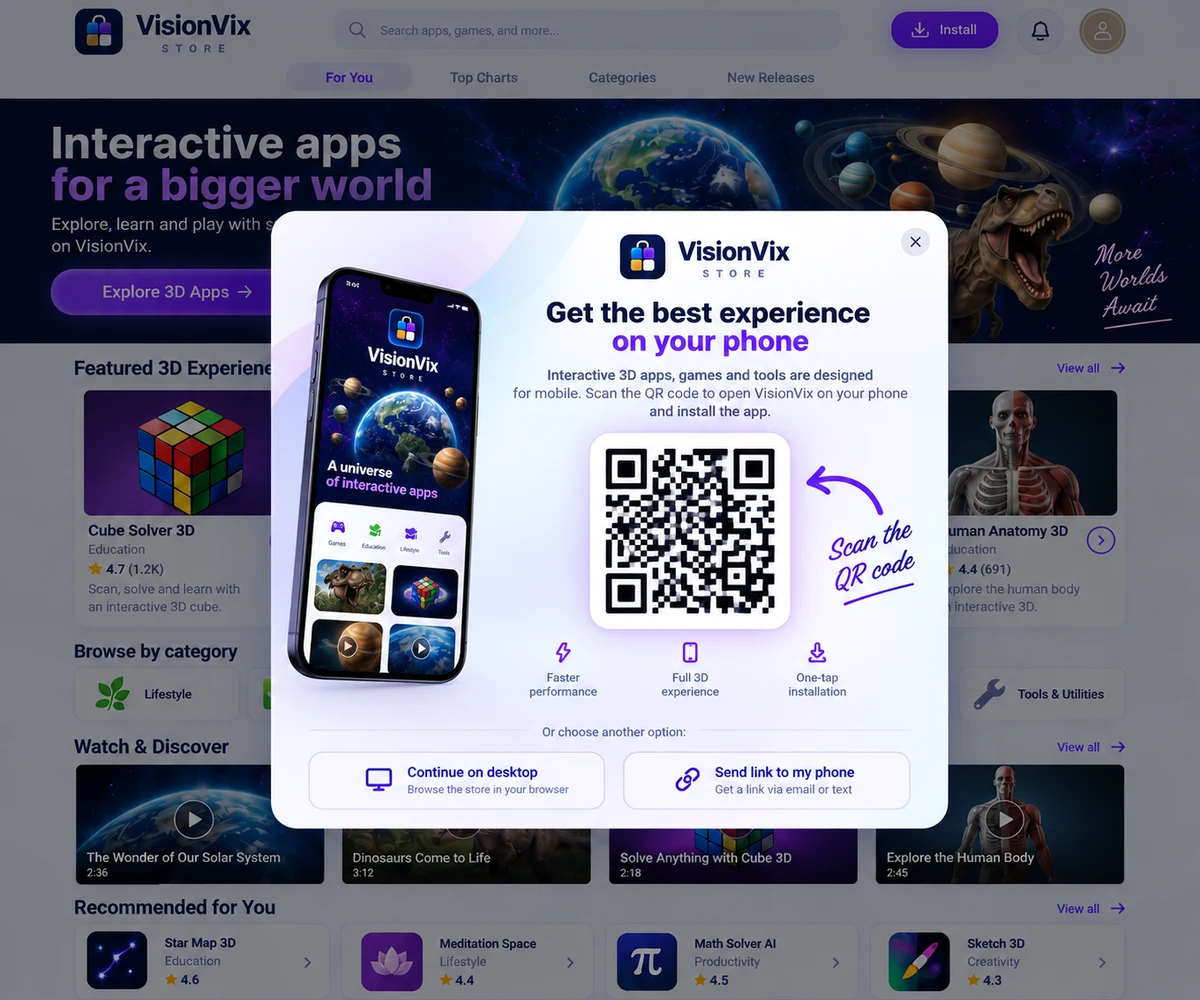
On a desktop? Scan the code with your phone
Open visionvix.store on a computer and the Store offers a QR code. Scan it with your phone camera, or choose Send link to my phone or Continue on desktop.
Install step by step
- Your VisionVix account must belong to someone aged 18 or over.
- Use Safari on iPhone and Chrome on Android.
- You need an internet connection to use the Store and its apps.
Install on iPhone
- Open Safari and go to visionvix.store.
- Sign in or create your account, then confirm you are 18 or over.
- Read the Before you continue screen, agree to the Terms of Service and tap Continue to VisionVix.
- Tap the Share icon at the bottom of Safari.
- Scroll down and tap Add to Home Screen.
- Tap Add in the top-right corner.
- Open VisionVix from your home screen. If it asks you to sign in again, use the same account.
- Tap 3D Chess, then tap Open App.
Install on Android
- Open Chrome and go to visionvix.store.
- Sign in or create your account, then confirm you are 18 or over.
- Read the Before you continue screen, agree to the Terms of Service and tap Continue to VisionVix.
- Tap Install on the install popup, or on the Install button at the top of the Store, then confirm.
- No popup? Tap the Chrome menu (three dots) and choose Install app or Add to home screen.
- Open VisionVix from your home screen.
- Tap 3D Chess, then tap Open App.
Inside the Store
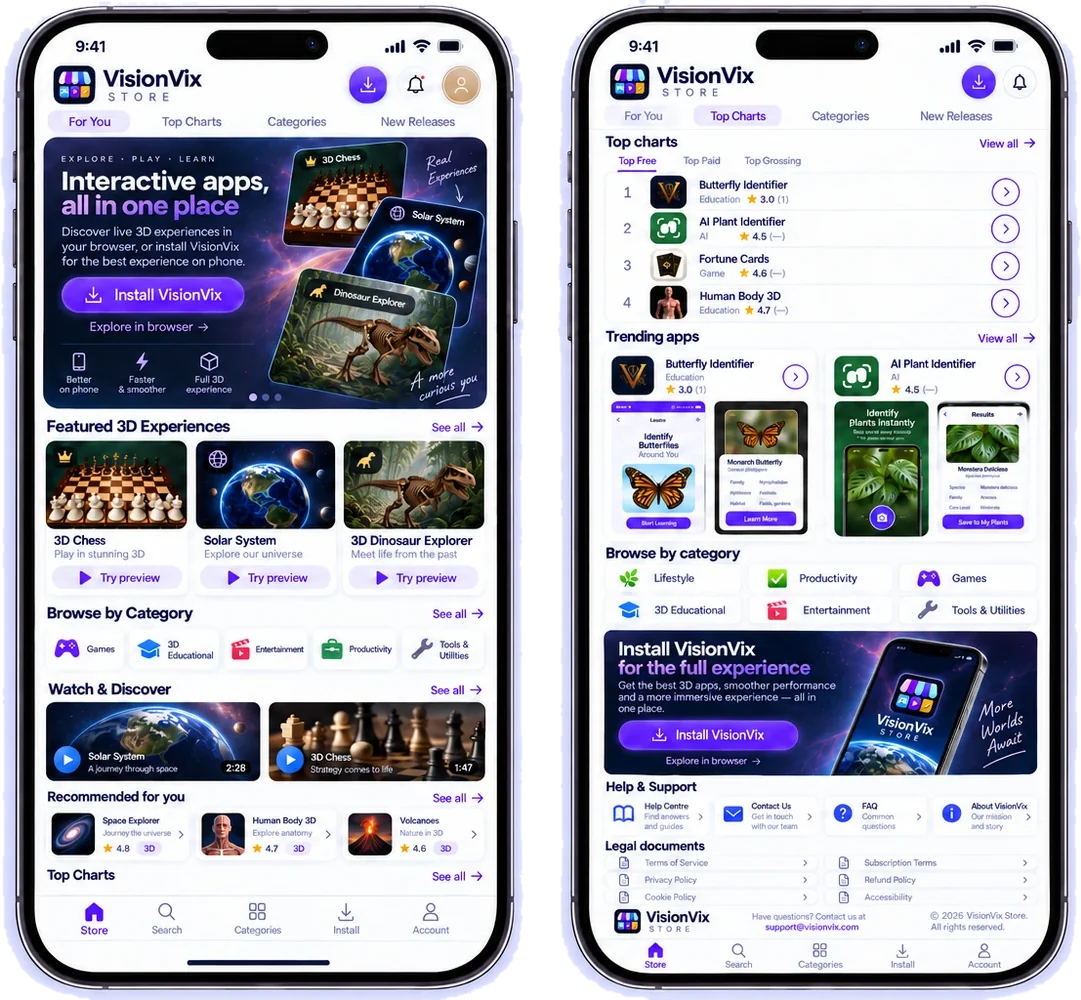
Once the Store is on your home screen, this is what you see. The home screen shows featured apps, categories and videos. Top Charts lists the most popular apps, and the Install button is always at the top.
Inside the apps
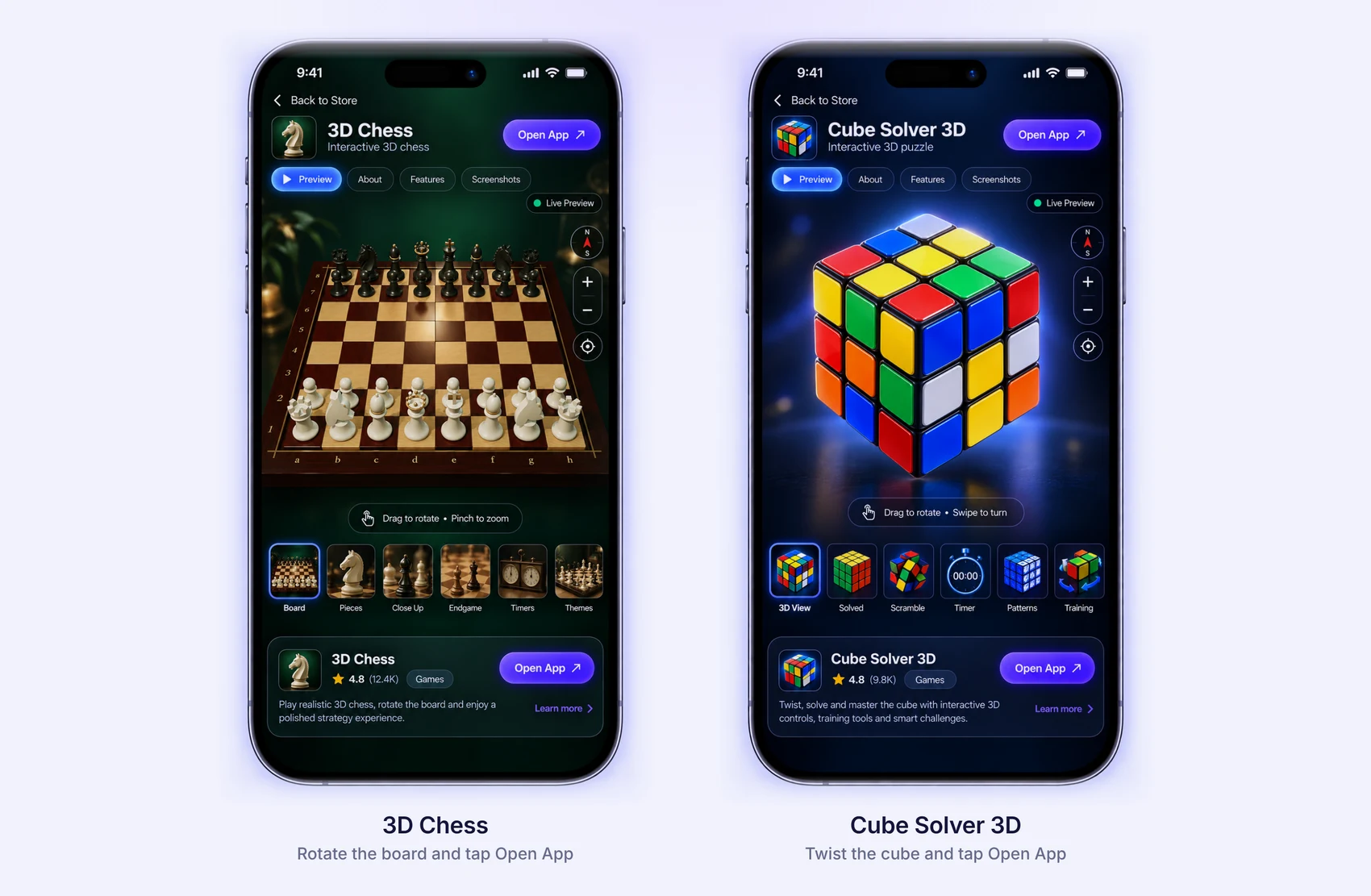
Every app opens from the Store and has its own look. Tap an app, check its page, then tap Open App to start. Here are two examples.
Your own account
When you register, you get your own VisionVix account. Your credits and the apps you have used are saved to it, and the same sign in works across the Store and its apps.
These screens are examples of the Store. The layout can change as the Store is updated.